Bot Protection
Bot protection
Bot protection
The add-on protects the storefront from bots with its own browser check — no captcha and no third-party services. Every new visitor passes a background check once: the browser solves a small computational task, usually within a second, and then the visitor is remembered and browses the store without delays. Bots that do not run JavaScript or send thousands of requests from different addresses are filtered out by this check.
Everything runs on your server. The store issues and verifies the task itself, and no visitor data is sent anywhere. The only outbound requests are the once-a-day downloads of the address lists that AI crawler vendors officially publish.
Who gets through without the check. Search engines (Google, Yandex, Bing and others) — after their address is confirmed by a DNS lookup; AI crawlers — by the address lists of their vendors; and payment notifications, 1C data exchange, the sitemap, RSS and YML feeds: exceptions for them are set up right after installation.
Request firewall. Even before the browser check, the add-on refuses obvious attack attempts — SQL injections, script injections, probes for other software such as /wp-login.php.
Log. Every decision of the add-on is recorded: refused requests, check results with the reason, failures of the protection itself. A short code is shown at the bottom of the check page — if a customer could not get through, the code shows in the log what happened.
The add-on is meant for stores that cannot or do not want to use Cloudflare. It does not promise protection from DDoS attacks: the check will not save the channel or the server from overload, but it filters out most of the botnet traffic — scrapers, vulnerability scanners, fake traffic.
Only the storefront is protected. The admin panel, the vendor panel and the other entry points of the store are never checked.
The add-on is in the Add-ons → CS-Commerce Addons → Bot protection menu. Its side menu has three sections: Settings, Connection and status and Log.
The add-on works with CS-Cart and Multi-Vendor starting from version 4.3.1 and supports the CS-Cart, CS-Cart Ultimate, Multi-Vendor, Multi-Vendor Plus and Multi-Vendor Ultimate editions.
Server requirements
- PHP 7.0 or newer.
- The SQLite3 PHP extension: the settings and data of the protection are kept in a separate SQLite database, not in the store database. If the extension is missing, ask your hosting provider to enable it (the
php-sqlite3package). - HTTPS on the storefront. The browser check uses cryptographic functions that browsers provide on secure pages only. The secure connection for the storefront is enabled in Settings → Security settings; without it the protection does not switch on.
- The
var/csc_bot_protectionfolder is writable by PHP and closed from the web (see «Connection and status»).
The add-on checks all the requirements itself and shows them on the Connection and status page. While any required item fails, the protection is off and visitors get to the storefront without the check — the store keeps working as usual.
Web server
The add-on works with Apache and nginx. On Apache the data folder is closed by an .htaccess file that the add-on creates itself. nginx does not read .htaccess files, so it needs a separate rule in the site configuration.
Storefronts
The protection settings are shared by all storefronts of the store: both in CS-Cart Ultimate and in Multi-Vendor Ultimate with several storefronts there is one set of settings and one log.
Visitor browsers
The check passes in any modern browser on a computer, tablet or phone. The visitor needs JavaScript enabled: the task cannot be solved without it. The check page is shown in the language of the visitor's browser; about twenty languages are supported, including English, Russian, German, French and Spanish.
If the add-on conflicts with your theme or another solution, please contact our support center.
After success payment, your order will be automatically marked as Paid within a few minutes. Once order changed to Paid status - add-on License activation passed success and you will received an e-mail with confirmation the receipt of payment and a second e-mail with a download add-on link. You can also download the add-on in our License Management section of our website. To install the add-on on your website, please follow these steps:
- Download the latest version of the add-on on our website in the "License Management" section or via the link sent by e-mail.
- Go to Add-ons → Manage Add-ons and in the gear button, select Manual Installation.
- Select the downloaded file and complete the installation of the add-on.
Add-on installation is completed. To go to the add-on settings page, select the installed add-on in the top menu Add-ons → CS-Commerce add-on
The add-on is in the Add-ons → CS-Commerce Addons → Bot protection menu. The side menu has three sections:
- Settings — five tabs: General, Exceptions, Check and limits, Request firewall and Debugging;
- Connection and status — whether the protection is running right now, server requirements, connection to the storefront, maintenance and diagnostics;
- Log — refused requests, check results and protection failures.
The settings are kept not in the store database but in the protection's own database in the var/csc_bot_protection folder: the protection starts before CS-Cart is loaded and reads them from there. Changes take effect right after saving.
The protection has no separate switch. While the add-on is active and the server fits, the protection runs; to switch it off, disable the add-on in the add-on list — the protection goes off at the same moment.
The protection runs as the first line of the storefront index.php, before CS-Cart, and decides on every request in this order:
- Request firewall. Obvious attack attempts are refused with a 403 response and recorded in the log, and the sender loses the trust earned earlier. Addresses mangled by mail programs and bots (
&instead of&in parameters) are redirected to the correct address. - Exceptions. Payment notifications, 1C data exchange, feeds and everything added on the Exceptions tab pass without the check.
- HTTPS. Visitors who came over HTTP are redirected to HTTPS.
- Those already trusted: addresses from the whitelist; a browser that passed the check recently; search engines confirmed by a DNS lookup; AI crawlers whose address is in their vendor's list.
- Everyone else sees the check page.
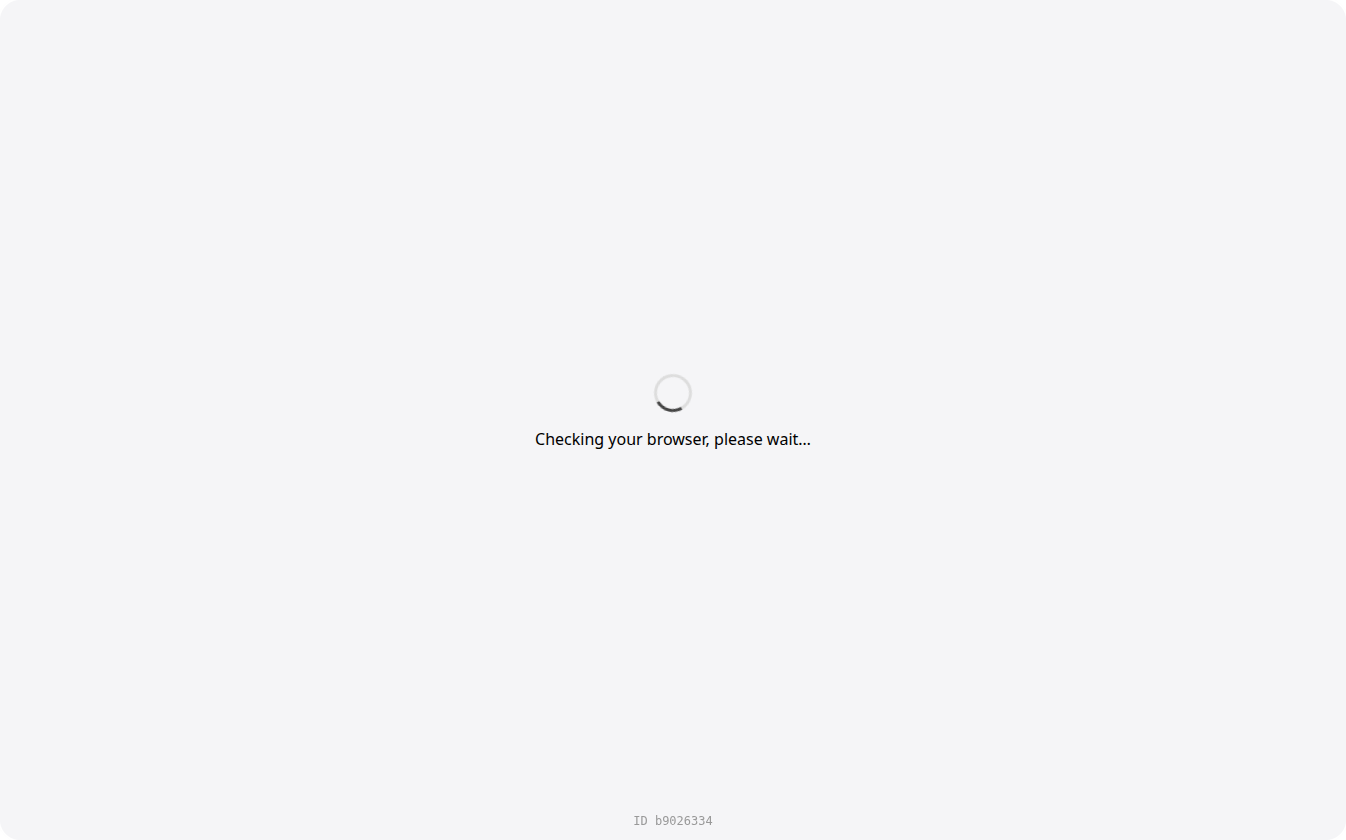
The check page
The visitor sees «Checking your browser, please wait…». The browser solves a computational task in the background (usually about a second on a mid-range phone), the store verifies the solution, remembers the browser with a signed cookie and the visitor's address, and the page reloads with what the visitor asked for. Nothing has to be pressed.
If a request looks suspicious, the task gets harder and the visitor has to press the Verify you're human button. Suspicion is rated from 0 to 100 by a set of signs: an empty or bot-like User-Agent, missing standard browser headers, frequent check requests from one address, a recent attack attempt from this address, the same browser version coming from too many networks. Which signs fired for a particular address is shown by the diagnostics (see «Connection and status»).
A code like ID 1a2b3c4d is shown at the bottom of the page. It is written to the log together with the check result: if a customer writes that they cannot get into the store, ask for this code and look it up in the log.
The check page is served with the HTTP status 503. That is why the web server logs show many 503 responses to index.php — this is the check being shown, not a server error. Search engines confirmed by DNS never see the check page.
If something is wrong with the protection
A failure of the protection never stops the store. If the server lacks SQLite3, the protection database is damaged or an error occurs inside, requests go through unchecked, and the event is written to the Protection failures log and to the server error log (at most once per five minutes for each reason).
The Connection and status page shows whether the protection is running right now and helps to fix whatever prevents it. At the top is the summary: The protection is running, The protection is off (with what to fix) or The protection is not connected.
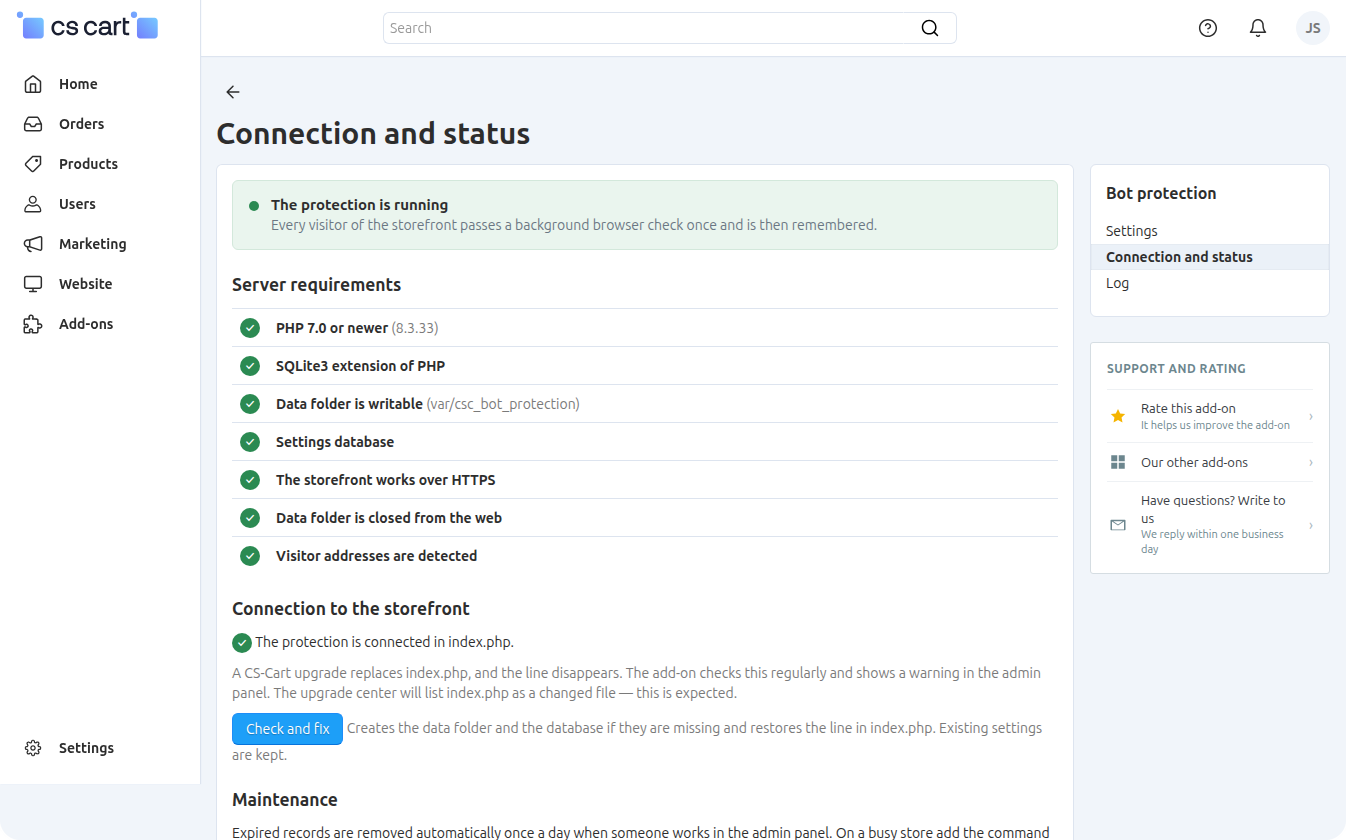
What installation and removal do
On installation the add-on itself creates the var/csc_bot_protection data folder with the settings database and secret keys (unique for every store) and adds a line that starts the protection to the storefront index.php. If any of this fails, the installation still completes, and afterwards the admin panel shows a warning with a link to this page.
When the add-on is uninstalled, the protection goes off, the line is removed from index.php, and the file becomes exactly what it was before the installation. The data folder is deleted together with the settings and logs.
Server requirements
A list of checks with marks: PHP 7.0 or newer, the SQLite3 extension, the data folder is writable, the settings database is in place, the storefront works over HTTPS. While any of these items is marked red, the protection is off. Each item says what to do; after fixing it press Check and fix.
Two more items do not affect whether the protection runs, but they matter:
- Data folder is closed from the web. The folder holds the secret keys of the protection and visitor addresses. The add-on checks this with a request to itself. On nginx add the rule
location ^~ /var/csc_bot_protection/ { deny all; }to the site configuration — nginx does not read.htaccess. - Visitor addresses are detected. If there is a reverse proxy or CDN in front of the store that does not pass the visitor address, all visitors look like one address. How to fix it — see «Common problems».
Connection to the storefront
The protection is started by a line at the top of the index.php file in the store root:
/* csc_bot_protection:begin */ if (is_file(dirname(__FILE__) . '/app/addons/csc_bot_protection/core/loader.php')) { include dirname(__FILE__) . '/app/addons/csc_bot_protection/core/loader.php'; } /* csc_bot_protection:end */The line is safe: if the add-on is removed, it does nothing. Before every change to index.php the add-on saves a copy of the file in the data folder (index.php.backup) and checks that the file is still valid PHP after the edit, otherwise it restores the previous one.
If PHP cannot write to index.php, the page offers two ways to connect the protection by hand:
- add the line shown to
index.phpright after the first line<?php; - without editing the file — set the full path to
loader.phpin the PHP settingauto_prepend_file(inphp.ini,.user.inior the hosting control panel). With this option only the storefrontindex.phpis protected, and the line does not disappear on a CS-Cart upgrade.
The admin panel is not affected with either option.
Check and fix
The button repeats the installation steps: creates the data folder and the database if they are missing and restores the line in index.php. Existing settings are kept. If the settings database is damaged, the add-on sets it aside and creates a new one with the default settings.
Maintenance
Expired records (expired trust, limits, used tasks) and overgrown logs are cleaned up automatically once a day when someone works in the admin panel. On a busy store it is better to add the cleanup to the server schedule (cron) — the command is shown on the page, for example:
php /path/to/store/app/addons/csc_bot_protection/core/cleanup.phpOnce a day is enough. The Remove expired records now button runs the same cleanup immediately.
Diagnostics
If a real visitor cannot pass the check, open the diagnostic address shown on the page — it looks like https://your-store/index.php?csc_bp=debug&token=…. The report shows how the protection rates your browser: the database state, cookie and whitelist status, bot verification, the suspicion level with every sign that fired, the task difficulty and the last log entries for this address. To look at another address, add &ip=1.2.3.4. The diagnostics change nothing.
The diagnostic address contains a secret key. Do not share it: without the key the address answers 404.The General tab of the Settings page.
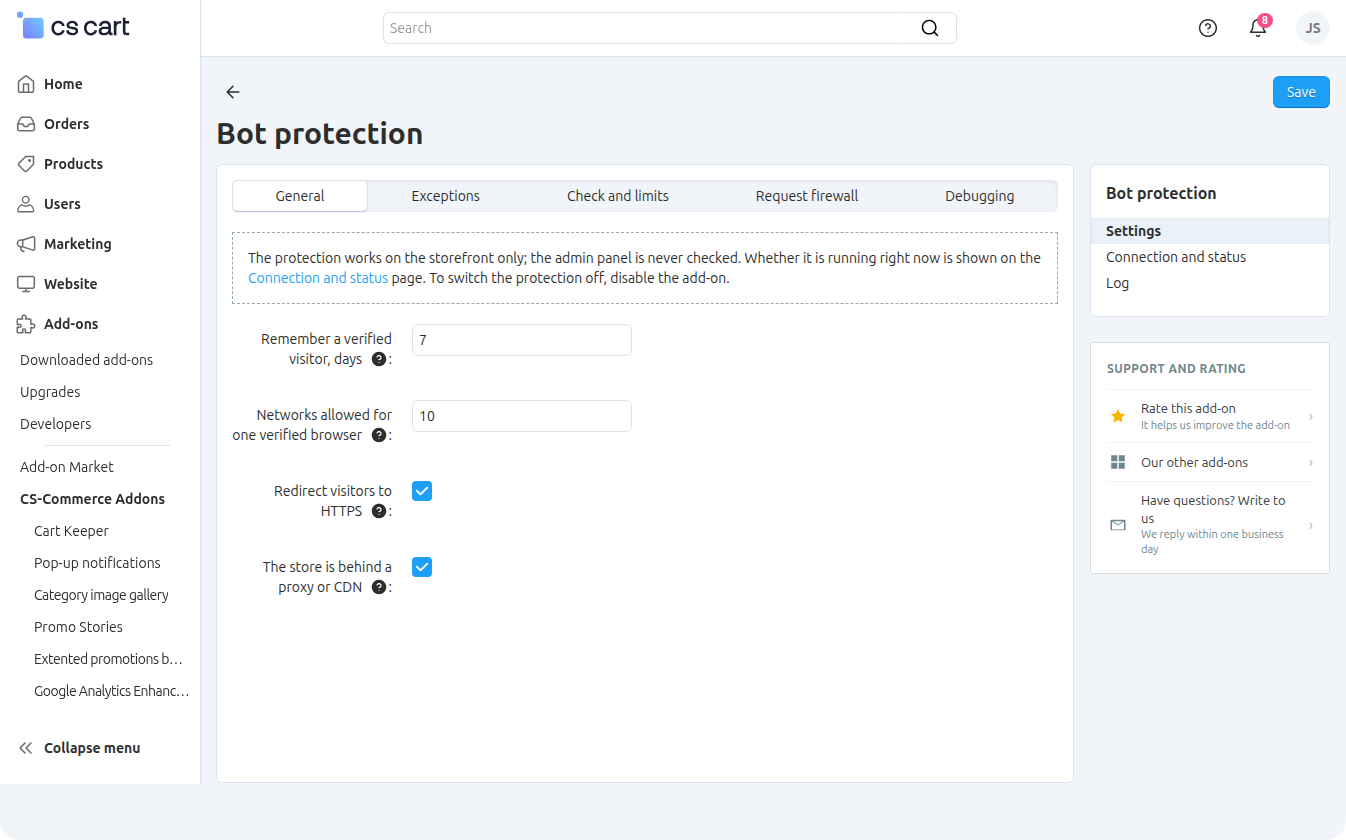
- Remember a verified visitor, days — how long a visitor who passed the check is not checked again. The default is 7.
- Networks allowed for one verified browser — a visitor may change networks (home, mobile, office). If the same verified browser shows up from more networks than this, it is checked again, so one passed check cannot be reused by a whole botnet. The default is 10.
- Redirect visitors to HTTPS — the browser check works over HTTPS only. Keep this on unless your web server already redirects all visitors to HTTPS. On by default.
- The store is behind a proxy or CDN — take the visitor address from the
X-Forwarded-For/X-Real-IPheaders. Turn on only if all traffic comes through your own proxy or CDN that sets these headers itself; otherwise visitors could fake their address. Off by default.
The protection works on the storefront only; the admin panel is never checked. To switch the protection off, disable the add-on.
The Exceptions tab defines which requests get through without the browser check.
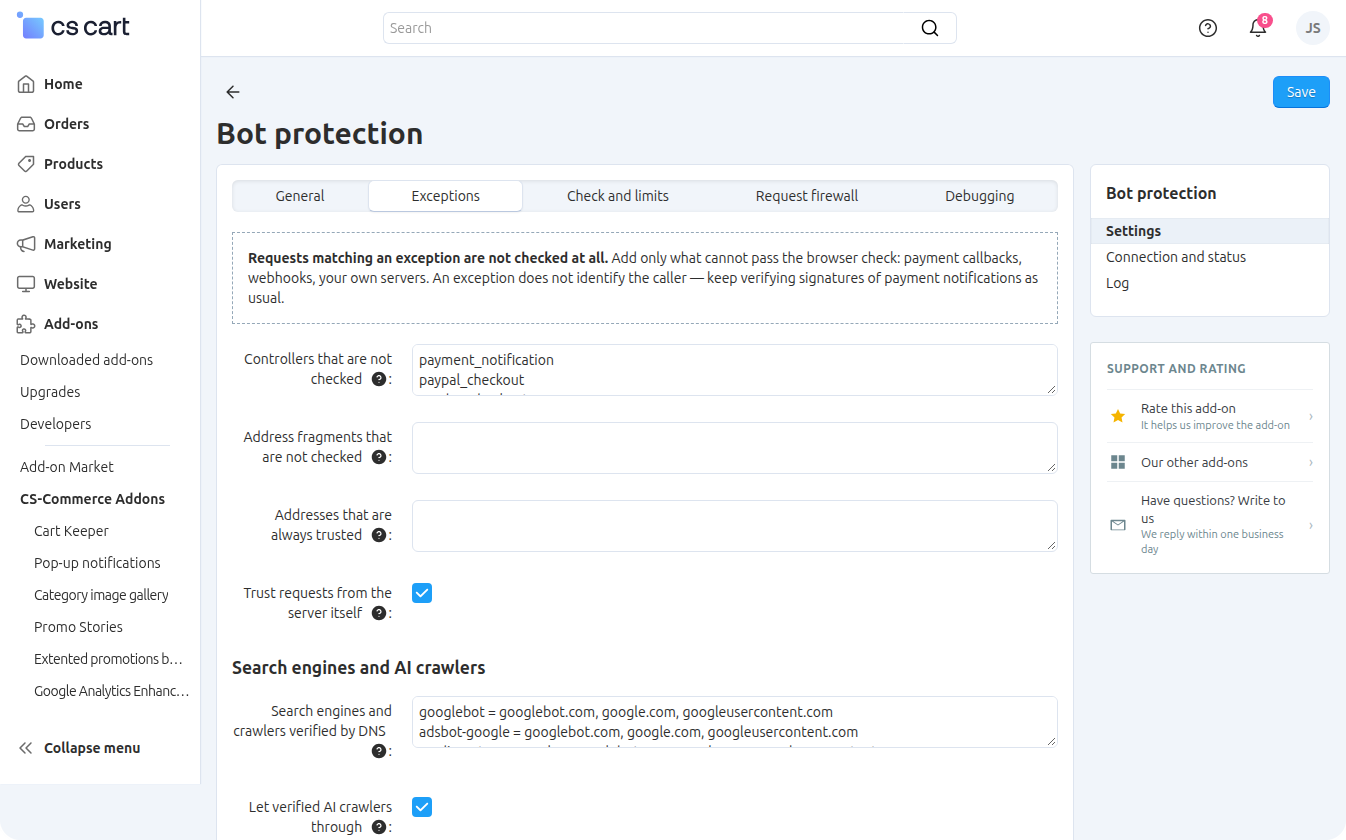
Requests matching an exception are not checked at all. Add only what cannot pass the browser check: payment callbacks, webhooks, your own servers. An exception does not identify the caller — keep verifying signatures of payment notifications as usual.Controllers that are not checked
One per line — the part of the dispatch parameter before the dot. The parameter counts both in the address and in the body of a POST request. After installation the list already contains:
payment_notification— notifications of all built-in CS-Cart payment methods;paypal_checkout— PayPal webhooks;yandex_checkoutandyandex_checkout_for_marketplaces— YooKassa notifications;tinkoff— Tinkoff Acquiring notifications;exim_1c— data exchange with 1C;em_subscribers_webhook— email marketing service webhooks;rss— the RSS feed;xmlsitemap— the sitemap;yandex— the YML feed of the products export add-on.
Your own payment add-on or a scheduled task. Anything that calls the storefront from another server and does not run JavaScript must be added to the exceptions, otherwise the request gets the check page and is not executed. Look at the address the notification comes to or the cron job calls: if it contains dispatch=my_payment.notify, add my_payment to this list. A typical case is cron jobs like wget https://store/index.php?dispatch=my_addon.cron: without an exception they silently stop running.
Address fragments that are not checked
For calls without the dispatch parameter — for example, when a payment system sends a notification to an SEO address such as /yoomoney/check_payment. One per line; the fragment is looked for in the path of the address only, parameters are ignored. Use long, hard-to-guess fragments such as /webhooks/pay-a1b2c3 — a short one like /api would open much more than intended. The list is empty by default.
Addresses that are always trusted
One per line: an IP address or an IPv4 range such as 198.51.100.0/24. Your office, monitoring services, your own servers. Entries in a wrong format are not saved — after saving the add-on shows which ones.
Trust requests from the server itself
Scheduled tasks, feeds and checks that call the store by its address from the same server are let through without the check. On by default. A request from the server's address is not trusted when it carries proxy headers the add-on was not told to read — that is how visitors look behind a proxy that has not been set up.
Search engines and AI crawlers
Search engines and crawlers verified by DNS — one per line: a fragment of the User-Agent, then «=» and the domains the bot's address must belong to, separated by commas, exactly as the search engine documents them. Example: googlebot = googlebot.com, google.com. The address is checked by a double DNS lookup, so the name alone cannot be faked. After installation the list contains Google (all robots, including AdsBot and Storebot), Bing, all Yandex robots, Mail.ru, Yahoo, DuckDuckGo, Apple, Baidu, Sogou, Naver, Seznam, Petal, as well as Amazonbot and Common Crawl.
An empty list means no crawler is let through without the browser check, and search engines cannot pass it. Do not clear this list if the store needs to be indexed.Let verified AI crawlers through — lets through the AI crawlers from the next list when their address is confirmed by the list officially published by the vendor. On by default.
AI crawlers verified by the published address list — one per line: a fragment of the User-Agent, then «=» and the https address of the JSON file with the bot's addresses that its vendor publishes. Example: gptbot = https://openai.com/gptbot.json. The file is downloaded once a day. After installation the list contains GPTBot, OAI-SearchBot and PerplexityBot.
Bots trusted by name, without verification — one per line: a fragment of the User-Agent, e.g. ClaudeBot. Anyone can put this name into a request and skip the check, so leave the list empty unless you accept that. Empty by default.
The Check and limits tab sets how hard the task for the browser is and how many checks one address may request. The defaults suit most stores.
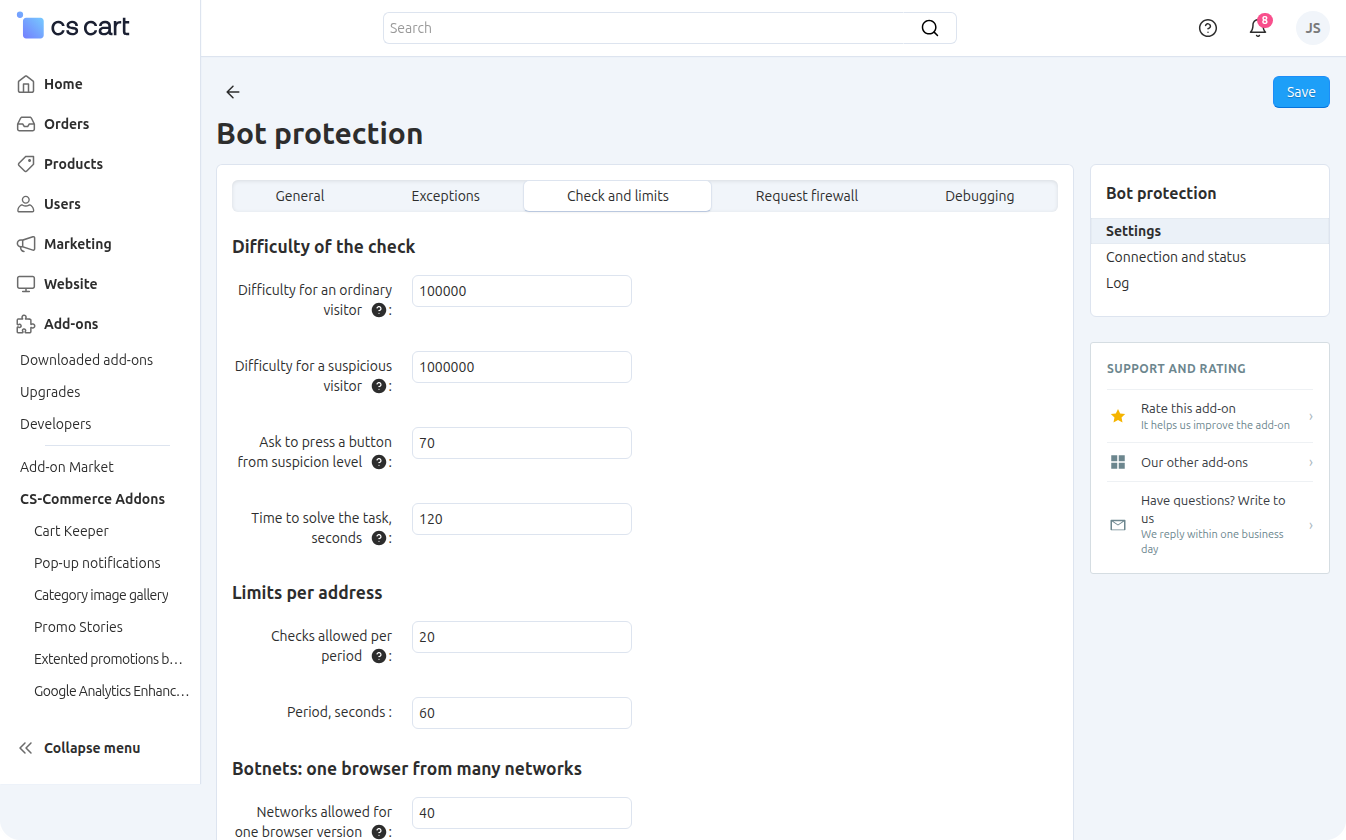
Difficulty of the check
- Difficulty for an ordinary visitor — the higher the number, the longer the browser works on the task. 100000 (the default) is about a second on a mid-range phone.
- Difficulty for a suspicious visitor — used when a request looks like a bot. Difficulty grows from the ordinary value to this one as suspicion rises. The default is 1000000.
- Ask to press a button from suspicion level — suspicion is rated from 0 to 100; from this level the visitor has to press the Verify you're human button instead of being checked in the background. The default is 70.
- Time to solve the task, seconds — a task issued to the browser is valid for this long. The default is 120.
Limits per address
- Checks allowed per period — how many times one IP address may request the check within the period. Further requests are refused until the period passes. The default is 20.
- Period, seconds — the default is 60.
Botnets: one browser from many networks
A botnet behind rotating proxies looks perfect from every single address, but the very same browser version keeps passing the check from hundreds of networks. The add-on counts how many networks each browser version passes the check from and, above the limit, treats that version as suspicious for everyone.
- Networks allowed for one browser version — the default is 100.
- Period, seconds — over which the networks are counted; the default is 86400 (a day).
- Suspicion added — from 0 to 100. With 70 (the default) such visitors have to press the button and solve a harder task.
Popular real browsers are also shared by many visitors. On a busy store a fresh version of Chrome on Windows comes from dozens of networks a day, so the limit has to be higher: if customers start seeing the Verify you're human button en masse, check in the check results log whether this sign fired, and raise the value.
Before the browser check every storefront request is screened for obvious attack attempts: probes for other software, SQL injections and script injections in addresses. Such requests are refused with a 403 response and recorded in the Refused requests log; the sender loses the trust earned earlier and has to pass the check again by pressing the button. Vulnerability scanners get a cheap refusal instead of a page with a task.
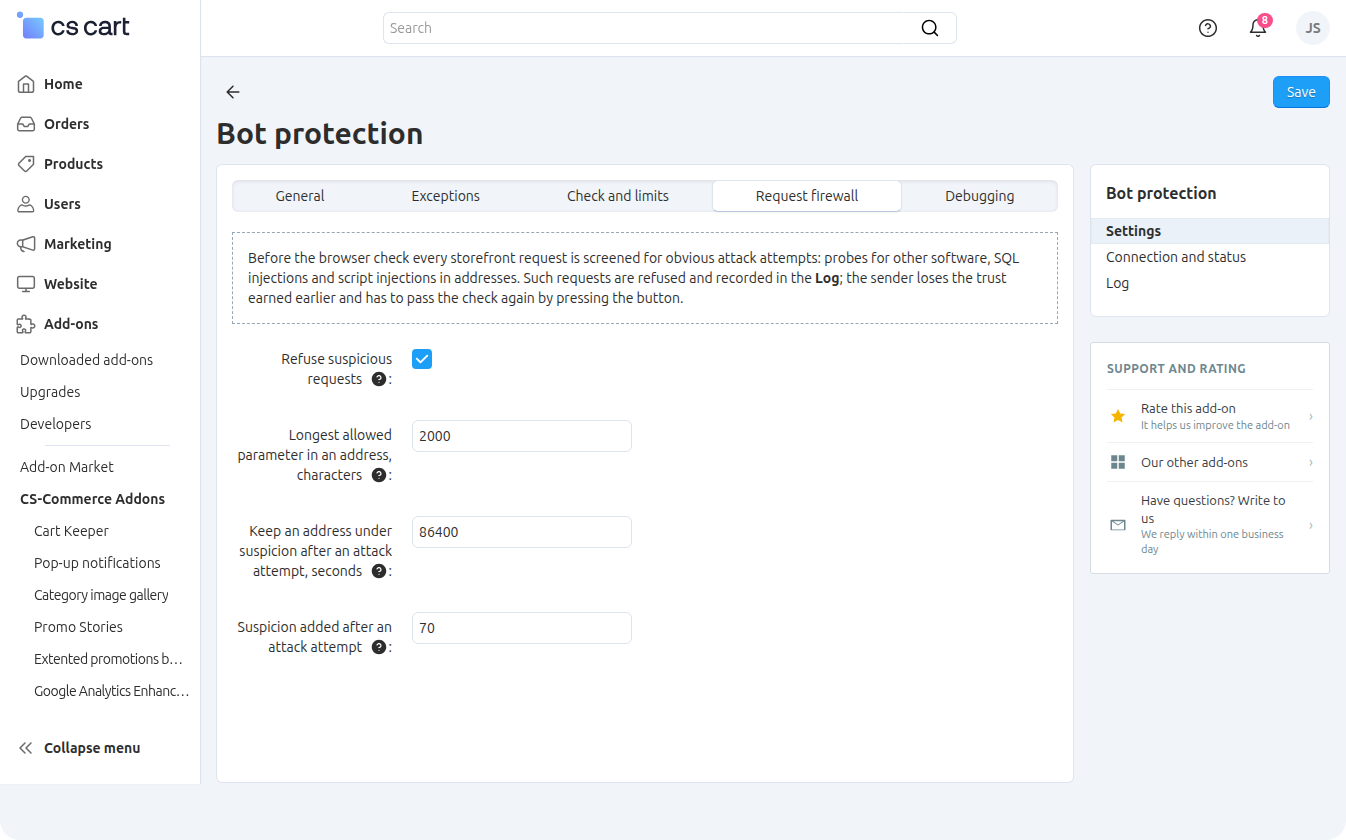
Tab settings
- Refuse suspicious requests — turn off to only record such requests in the log without refusing them. This is useful for a few days after installation to make sure nothing legitimate is caught. On by default.
- Longest allowed parameter in an address, characters — requests with a longer parameter are treated as an attack attempt. The default is 2000.
- Keep an address under suspicion after an attack attempt, seconds — the suspicion is lifted earlier as soon as the visitor passes the check by pressing the button. The default is 86400 (a day).
- Suspicion added after an attack attempt — from 0 to 100. With 70 (the default) the visitor has to press the button and solve a harder task.
What the firewall checks
- the path, address parameters, cookies and the User-Agent — for SQL injections, script and PHP code injections, directory traversal (
../), overlong parameters; - requests to addresses of other software and service files (WordPress, phpMyAdmin, Adminer,
cgi-bin,.gitfolders,.envand.htaccessfiles) — for requests of any type, including POST; - the catalog filter parameter
features_hash— in a real filter it consists of letters, digits, hyphens and underscores only.
POST requests (checkout forms, reviews, support requests) are not checked for injections: customers type free text there, and checking it would cause false alarms. Only the check for requests to other software applies to them.
Requests to non-existent.phpfiles are refused only if the web server passes them toindex.php. With a usual nginx or Apache configuration the server answers them with 404 itself, and such requests never reach the add-on.
The Debugging tab.
- Record every check result in the log — each passed or failed check with the reason goes to the Check results log. Helps to find out why a real visitor could not get through. Can be turned off on a very busy store. On by default; the log has a size cap and is trimmed on cleanup.
- Check everyone on every visit (test mode) — for testing only: every visitor, including already verified ones and search engines, sees the check on every page. After a passed check the requested page opens, and a minute later the check is shown again. Off by default.
Never leave the test mode on: search engines see the check too, and that hurts indexing.The Log page shows three logs, newest entries first. Each has a search by IP address or any text — for example, by a check code or a rule name.
Refused requests
Attack attempts stopped by the request firewall: the time, the address, the rule that fired and where it fired (path, parameters, cookie, User-Agent), the requested address.
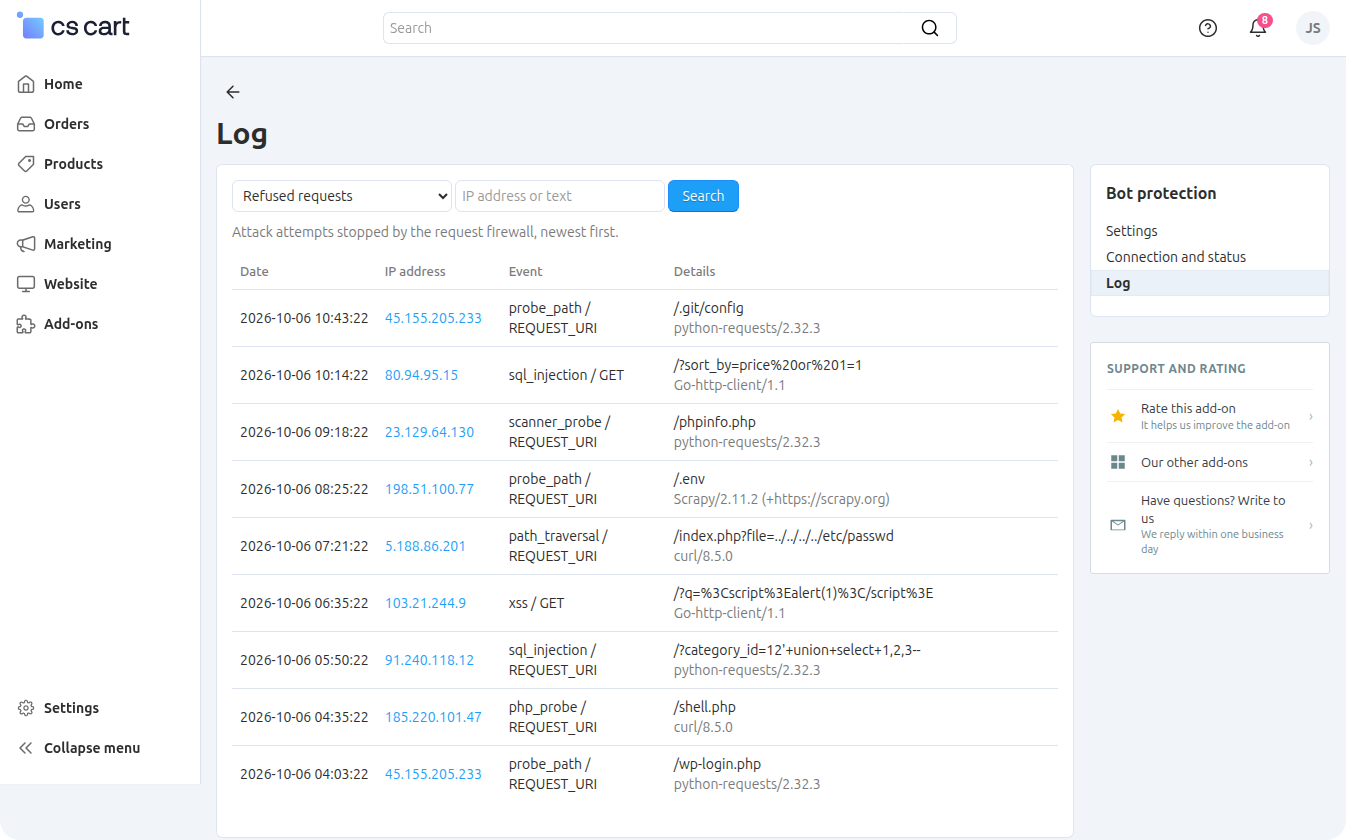
Check results
Passed and failed browser checks with the reason: a task issued (with the suspicion level and the signs that fired), a solution accepted, a solution rejected, the request limit exceeded. Every entry carries the check code — the same one the visitor sees at the bottom of the check page (ID 1a2b3c4d). If a customer writes that they cannot get into the store, ask for this code and type it into the search: the entry shows what exactly happened.
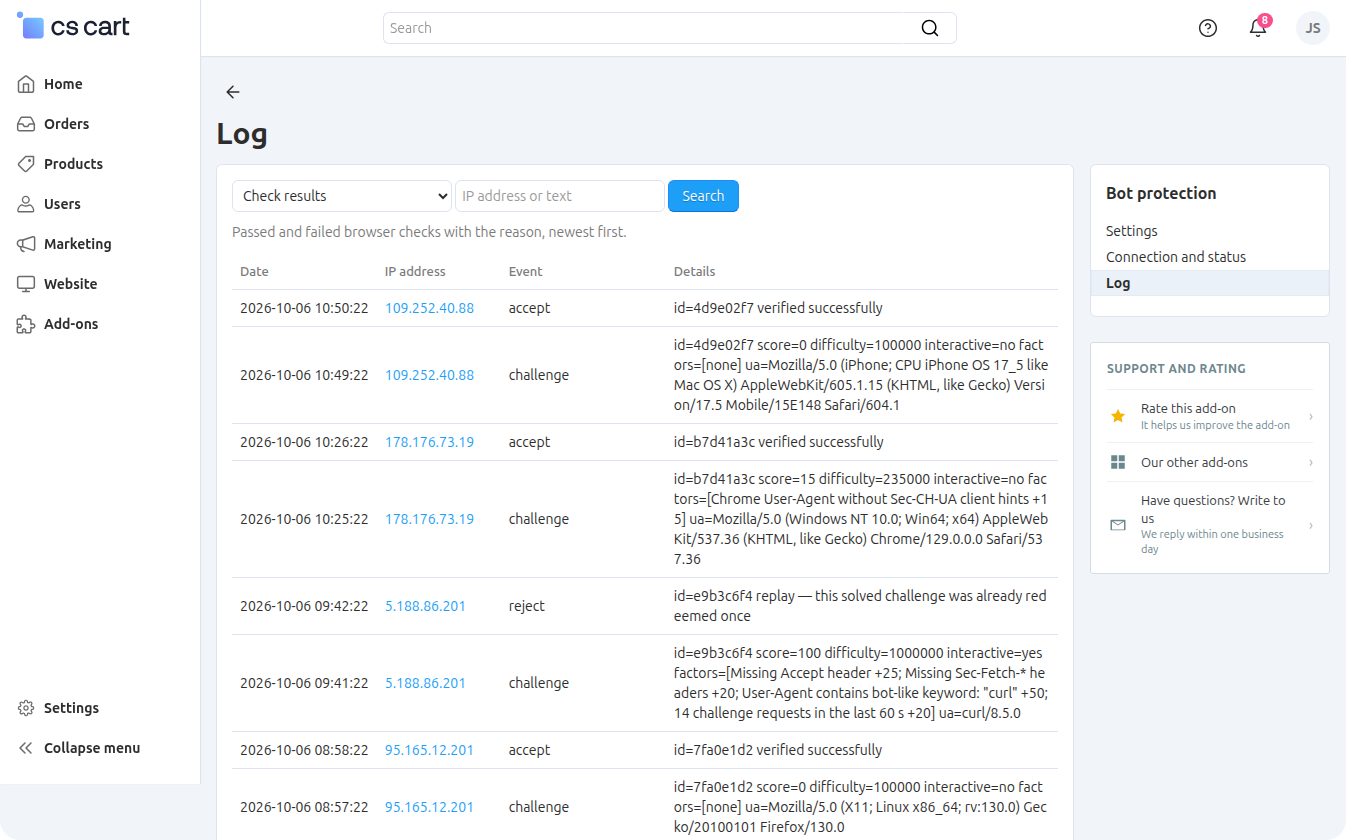
Protection failures
Moments when the protection could not run and let requests through unchecked: the SQLite3 extension is missing, the database is unavailable or damaged, an internal error. The same reason is recorded at most once per five minutes. An empty log is a good sign.
Entry times are shown in the store time zone. The logs have a size cap: the daily cleanup keeps their last lines.
A CS-Cart upgrade replaces the index.php file, and the line that starts the protection disappears. The store keeps working, but visitors are no longer checked.
The add-on watches for this itself: once a minute, while someone works in the admin panel, it checks index.php. If the line is missing, the panel shows the warning «Bot protection is not running: its line is missing from index.php» with the Restore the connection link. The link leads to the Connection and status page; press Check and fix there — the line comes back, the settings are kept.
The CS-Cart upgrade center will list index.php as a changed file — this is expected: the change is the protection line.
If you do not want the add-on to edit index.php, connect the protection through the PHP setting auto_prepend_file (see «Connection and status»): a CS-Cart upgrade does not affect this connection.
Many 503 responses in the server logs
This is the check page being shown, not an error: it is served with status 503 so that search engines and caches do not store it instead of the real page. Bots that failed the check usually far outnumber customers, so there may be more 503 responses to index.php than 200 ones. A breach would look like a 200 response to a bot request.
The store is behind Cloudflare or a reverse proxy
If Cloudflare, nginx as a reverse proxy or another CDN is in front of the store, PHP sees the proxy address instead of the visitor address. Then every visitor shares one address, one whitelist and one check limit. The Connection and status page warns about it. There are two ways to fix it:
- restore the visitor address at the web server level — for Cloudflare in nginx this is
set_real_ip_fromwith the Cloudflare address ranges andreal_ip_header CF-Connecting-IP; the add-on then sees the real address right away; - or turn on The store is behind a proxy or CDN on the General tab — only if all traffic goes through your own proxy, otherwise visitors could fake their address.
Payment notifications do not arrive
The built-in CS-Cart payment methods, PayPal, YooKassa and Tinkoff work out of the box. If a payment add-on sends notifications to its own controller or SEO address, add it on the Exceptions tab: a controller to the controller list, an address without dispatch to the address fragment list. The web server log helps to find the address: a notification that got the check page shows up there as a 503 response to a POST request from the payment system's address.
Scheduled tasks stopped running
Cron jobs that call the storefront by its address (wget, curl) cannot pass the check. If the job runs on the same server, the Trust requests from the server itself setting lets it through. If it runs on another server or the setting is off, add the controller from the job's address to the exceptions. Jobs started from the console with php index.php … are not checked by the protection.
A real visitor cannot get through
- Ask for the code from the check page (ID …) and find it in the Check results log.
- If the reason is an exceeded limit or high suspicion, open the diagnostics with
&ip=visitor_address: it shows every sign that fired. - If the visitor works from an office or through a corporate proxy, add their address to Addresses that are always trusted.
- If many customers with the same browser started to see the Verify you're human button, raise Networks allowed for one browser version on the Check and limits tab.
A visitor with JavaScript turned off cannot pass the check. In a very old browser that lacks the required functions, the page suggests opening the site in a modern browser.
The protection is off although the add-on is active
Open Connection and status: whatever prevents it is marked red. Most often it is missing HTTPS on the storefront, a missing SQLite3 extension or the line in index.php lost after a CS-Cart upgrade. The protection also goes off if the add-on license cannot be confirmed for the domain; a temporary outage of the license server does not switch it off.
In order to have access to add-on upgrades, you must have an active upgrade subscription. If the subscription period has expired, you will only have access to upgrades released before the expiration date of your subscription. You can renew your upgrades subscription in the "License Management" section on our website.
The add-on supports instant upgrades via the CS-Cart Upgrade Center. The built-in CS-Cart Notification Center (bell) will notify you about new versions release of the add-on. Upgrades via Upgrades Center will allow you to switch to a newer version without losing add-on data and settings.
Before start an upgrade process, it is highly recommended to make a full backup of the site (database and files) of your store using the server or hosting methods.
Upgrade through the Upgrade Center
- In the top menu, go to Administration → Upgrade Center;
- In the gear menu, click "Refresh available upgrades"
- Find and add-on on list of available upgrades and click the Download button and than Install button;
- Follow all the instructions that will be shown during the upgrade process;
- It is recommended to clear the CS-Cart templates cache after the upgrades are installed by deleting the var/cache folder on your server or adding the ctpl parameter to the address bar (example: https://domain.com/admin.php?ctpl).
Addon Reinstallation by uninstall old and install new:
Reinstalling an add-on means deleting the add-on's settings and data. Reinstallation will allow you to get a clean installation of the latest addon version. To reinstall the add-on with saving the add-on settings and data, please contact us via our Support Center to provide this service.
To completely reinstall an add-on without saving data, follow these steps:
- Go to Add-ons → Manage add-ons and find the old installed add-on.
- Click the delete button in the gear menu of the add-on.
- Download the latest version of the add-on on our website in the "License Management" section.
- Go to Add-ons → Manage add-ons and in the gear menu select Manual Installation. Select the previously downloaded file and complete the installation of the add-on.
The technical support of the add-on is already included in its price. Before contacting the support center, please make sure you are using the latest released version of the add-on. Old versions of the add-on are not supported by technical support.
To use our technical support, follow these steps:
- On our support center site https://helpdesk.cs-commerce.com/, log in with your account;
- Click on the "Create ticket" button;
- Fill in all the required fields and create ticket (you will receive a confirmation email);
- Expect a response from a specialist (a notification will be sent to your e-mail about the response) in accordance with the regulations of the technical support service.
If you have not received an answer within the time frame specified in the regulations, write us a message to the e-mail [email protected] with the subject of the ticket and we will try to resolve your issue as soon as possible.
Technical support via chat on the site, direct phone calls or e-mail letters is not provided. All help discuss goes through the support center. Carefully study the documentation for the add-on and the terms of technical support before creating a ticket. We recommend that you familiarize with the general restrictions:
- Fragments of code or some files of an add-on may have a private (encoded) part. The coded part does not create problems on add-on customizations;
- The add-on will work only on those domains that are specified in the user's license. If you try to use the solution the domains of which are not included in the license, the add-on will be automatically disabled;
- Installing on local machines is not allowed by the licensing system. For the add-on to work on an additional domain (alias), specify this alias on the license management page. Up to three aliases are allowed per domain for testing and development purposes. You can change the main license domain yourself on the license management page.
To have possibility to add or change license domains and aliases, the upgrade subscription must be active. To change the license domain of an expired upgrades subscription, you must first renew your subscription.
Version 1.0 of October 6, 2026
- The first release of the add-on: a background browser check on the storefront without third-party services, search engines let through by DNS and AI crawlers by address lists, exceptions for payment notifications, a request firewall against attack attempts, a log with the code of every check, a connection and status page with server checks and restoring the connection after a CS-Cart upgrade.