LLMs.txt Generator
The add-on publishes the /llms.txt and /llms-full.txt files on the storefront — a Markdown description of the store for AI assistants and services that read websites to answer people's questions. The files are built from the catalog automatically: the store name and description, featured products, categories, products with prices, information pages. There is nothing to maintain by hand — the add-on rebuilds the files from the current catalog by itself.
Two files. llms.txt is a short index: one line per category, product and page, with a link and a short note. llms-full.txt is the detailed version: every product comes with its price, SKU, availability, category, features and description, every page with its text.
You decide what goes into the files. Key products can be picked by hand, and the add-on selects the rest by popularity, novelty, sales or evenly across categories. Unwanted sections of the catalog are excluded as a whole, and the size of the files is kept within limits.
You can see who reads the files. The Requests tab shows which bots and programs requested the files over the last 30 days.
llms.txt is an open proposal (llmstxt.org), not a standard anyone is obliged to follow. Google states that the file does not affect search, and whether AI services read it is up to them. The add-on gets the store ready and shows the actual requests to the files, but it does not promise more traffic.
The add-on settings are opened from Add-ons → CS-Commerce Addons → CS-Commerce: LLMs.txt Generator.
The add-on has been tested on CS-Cart 4.21.1. Operation on CS-Cart versions older than 4.21, on Multi-Vendor and in stores with several storefronts has not been tested yet — if your store is one of these, please contact our support center before buying.
The add-on does not create physical files in the root directory of the store: the /llms.txt and /llms-full.txt addresses are handled by CS-Cart itself. So the web server must pass requests for non-existent files to index.php, as the standard CS-Cart .htaccess does on Apache. The specifics of nginx are covered in How the files work.
CS-Cart add-ons that extend the features but are not required:
- Bestsellers & On-Sale Products — adds the Best selling option for picking products;
- Blog — blog posts can be included in the files;
- Google sitemap — when the sitemap has been generated,
llms.txtlinks to it.
CS-Cart 4.20.1 and newer has a built-in llms.txt editor; how the add-on works next to it is described in The built-in llms.txt editor in CS-Cart.
If the add-on conflicts with your theme or another solution, please contact our support center.
After success payment, your order will be automatically marked as Paid within a few minutes. Once order changed to Paid status - add-on License activation passed success and you will received an e-mail with confirmation the receipt of payment and a second e-mail with a download add-on link. You can also download the add-on in our License Management section of our website. To install the add-on on your website, please follow these steps:
- Download the latest version of the add-on on our website in the "License Management" section or via the link sent by e-mail.
- Go to Add-ons → Manage Add-ons and in the gear button, select Manual Installation.
- Select the downloaded file and complete the installation of the add-on.
Add-on installation is completed. To go to the add-on settings page, select the installed add-on in the top menu Add-ons → CS-Commerce add-on
Addresses
The files are available at https://your-store/llms.txt and https://your-store/llms-full.txt; the exact links are shown at the top of the General settings tab. This is the version in the default storefront language. For another language the language code goes at the start of the path — /de/llms.txt, /de/llms-full.txt — or the ?sl=de parameter is added. The language is chosen by the address only: the visitor's browser language does not affect the content, so a bot always gets the same file at the same address.
There are no physical files in the store root: the built files are kept in var/files/csc_llms_txt/ and served by CS-Cart. If the root directory of the store holds an llms.txt file of its own, the web server returns it instead of the add-on's file — in that case the General settings tab shows a warning. Delete that file to let the add-on work.
The files are served as plain UTF-8 text with the X-Robots-Tag: noindex header, so that search engines do not show them in results as pages of the site.
If the store runs on nginx that serves .txt files by itself and does not pass requests for missing files to PHP, the /llms.txt and /llms-full.txt addresses will return 404. In that case we recommend adding a rule to the configuration that passes such requests to index.php, or using the addresses index.php?dispatch=csc_llms_txt.view&file=llms and index.php?dispatch=csc_llms_txt.view&file=llms-full. The add-on has not been tested on nginx yet; if anything goes wrong, contact our support.What is inside llms.txt
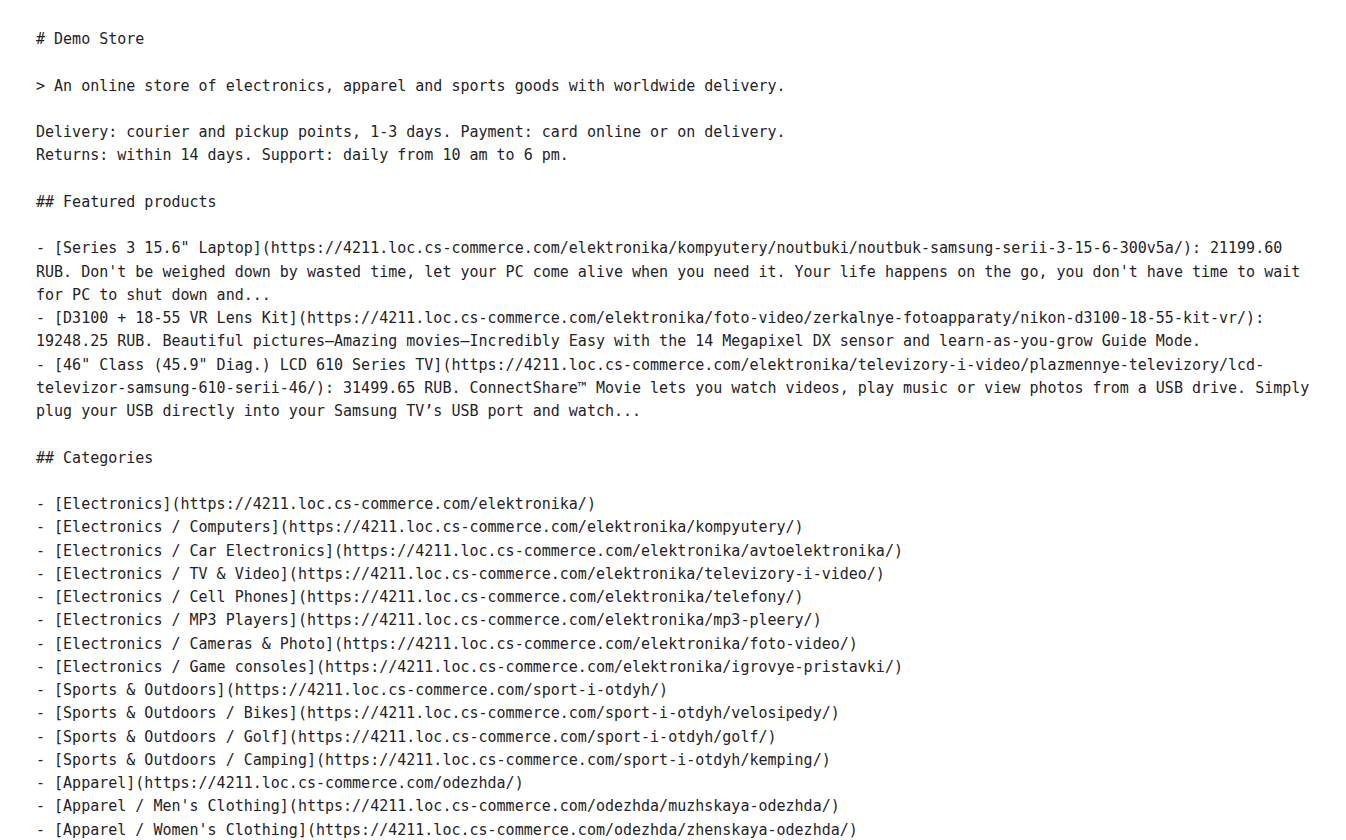
The sections go in this order:
- the heading — Store name, followed by Short store description as a quote and the text from Additional information;
- Featured products — the products picked by hand;
- Categories — the full category path, a link and the start of the category description (its meta description if there is no description);
- Products — the name, a link, the price and the start of the short description;
- Information — active information pages in the order of their positions, then Blog, if blog posts are included, newest first;
- Optional — a link to
llms-full.txt(if it is published) and to the XML sitemap (if it has been generated).
The notes in the lines are shortened to 160 characters.
What is inside llms-full.txt
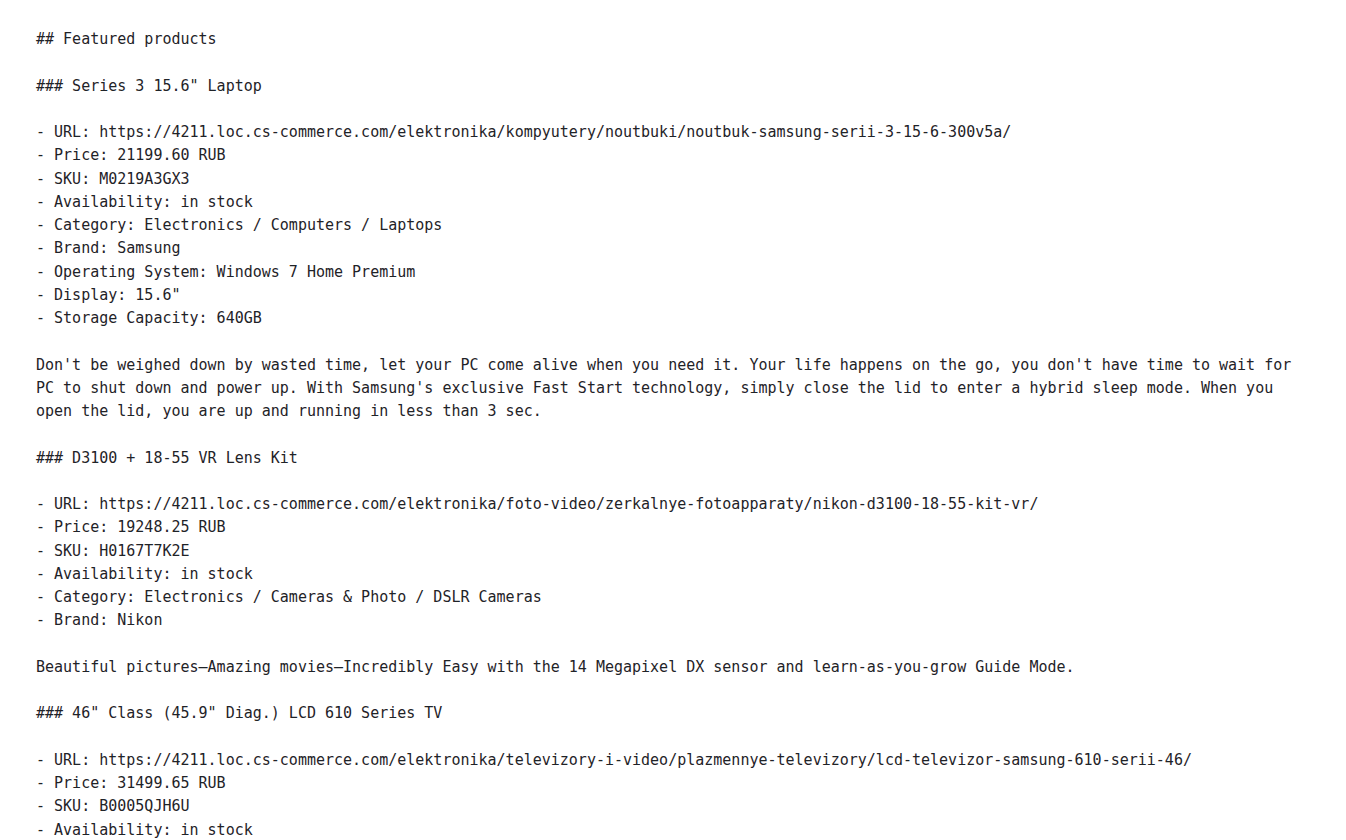
The order of sections is the same, without Optional, but every entry is detailed:
- a product has a link, price, SKU, availability (in stock / out of stock), main category, features (if Add product features is enabled) and the full description, shortened to the Description length limit, characters;
- a category has a link and a description of up to 1000 characters;
- a page or blog post has a link and its text of up to 5000 characters.
Who the files are built for
The files are built as a guest: only what an anonymous visitor sees gets into them. Prices are shown as a guest sees them, in the primary currency of the store; products with a zero price are listed without one. HTML from descriptions is turned into plain text, and headings and quotes inside descriptions are removed so that they do not break the document structure.
Size limits: up to 5000 products in llms.txt, up to 1000 in llms-full.txt, up to 5000 categories, up to 100 featured products, up to 200 pages and 200 blog posts. The recommended values are lower; see Content for why.
The add-on page is opened from Add-ons → CS-Commerce Addons → CS-Commerce: LLMs.txt Generator. When you open the add-on settings from Add-ons → Manage add-ons, the system redirects you to this page.
The settings are split into four tabs:
- General settings — file addresses, publishing, the file heading, the refresh interval and scheduled rebuilds;
- Content — which categories, products and pages get into the files;
- llms-full.txt — publishing the detailed file and its limits;
- Requests — who requested the files over the last 30 days.
Right after installation the add-on publishes both files with the default settings. To make the files describe the store better, it is enough to fill in Short store description and Additional information and pick a few featured products.
Saving the settings queues the files for a rebuild: the new version is built on the next request to the file or on the next scheduled run, and until then the previous version is served.
Access rights
The add-on adds the Manage CS-Commerce: LLMs.txt Generator privilege group with two rights: viewing the add-on page and changing the settings. They can be granted to administrators with limited rights in Users → User groups.
The General settings tab opens with the Your files for AI assistants block: links to llms.txt and llms-full.txt (the second one if the detailed file is published) and the time of the last build. If the files are queued for a rebuild or have never been built, a message saying so is shown instead of the time. This is also where the warning about an llms.txt file in the store root appears, as well as, in CS-Cart 4.20.1 and newer, a note about the built-in editor.
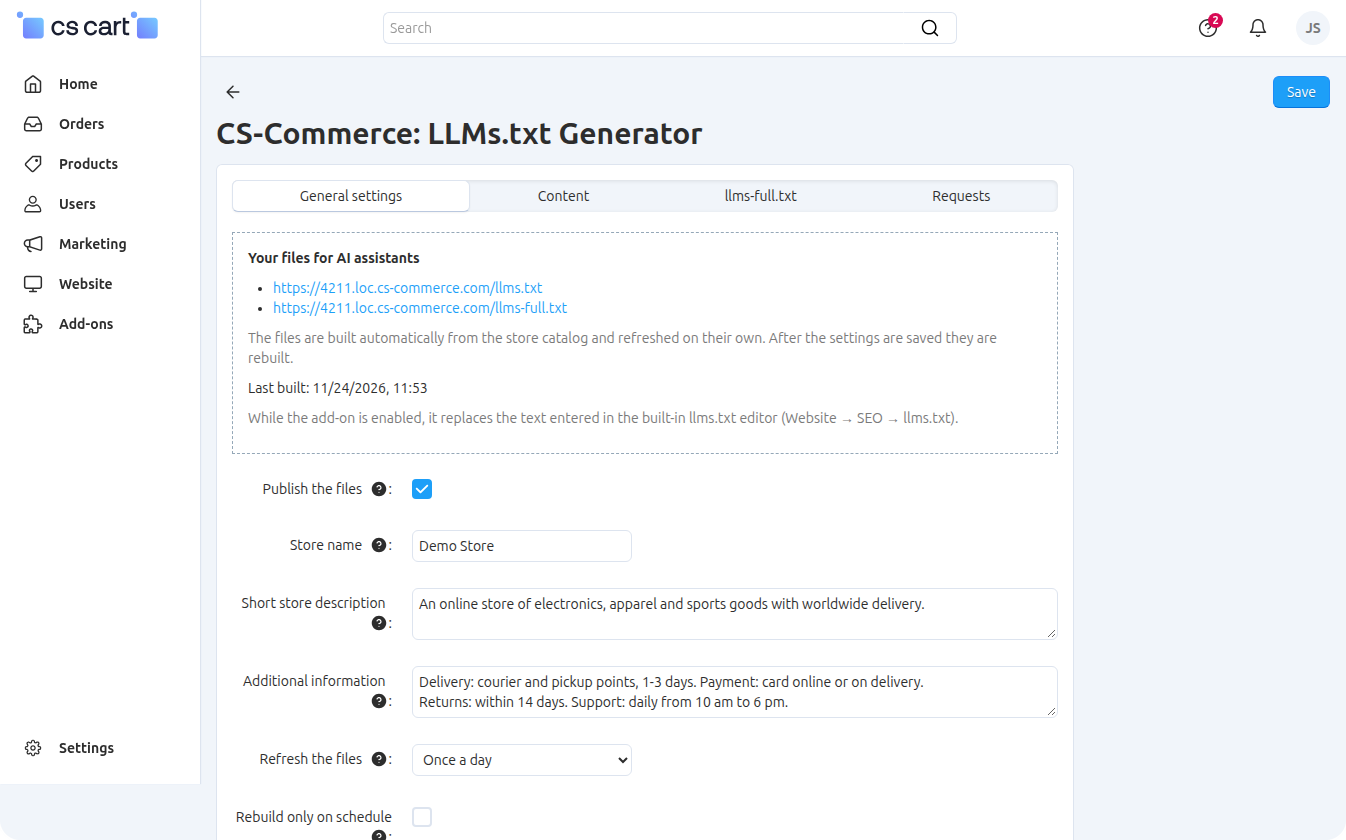
- Publish the files — the main switch. When disabled, the add-on stops serving
llms.txtandllms-full.txt; in CS-Cart 4.20.1 and newer the/llms.txtaddress goes back to the built-in editor. Enabled by default. - Store name — the heading of the file. If empty, the company name from the store settings is used.
- Short store description — one or two sentences on what the store sells and for whom. This is the first thing an AI assistant reads.
- Additional information — free text in Markdown placed under the description: delivery and payment terms, return policy, contacts, working hours. It is output as is.
- Refresh the files — how long a file stays current: Every hour, Every 6 hours, Once a day (default) or Once a week. Hidden while the next setting is enabled.
- Rebuild only on schedule — visitors always get a ready file, and the files are refreshed by a cron task. Recommended for large catalogs. Disabled by default.
Below the settings there is the Scheduled rebuild block with a ready-made cron command. How refreshing and the schedule work is described in Refreshing the files and scheduled rebuilds.
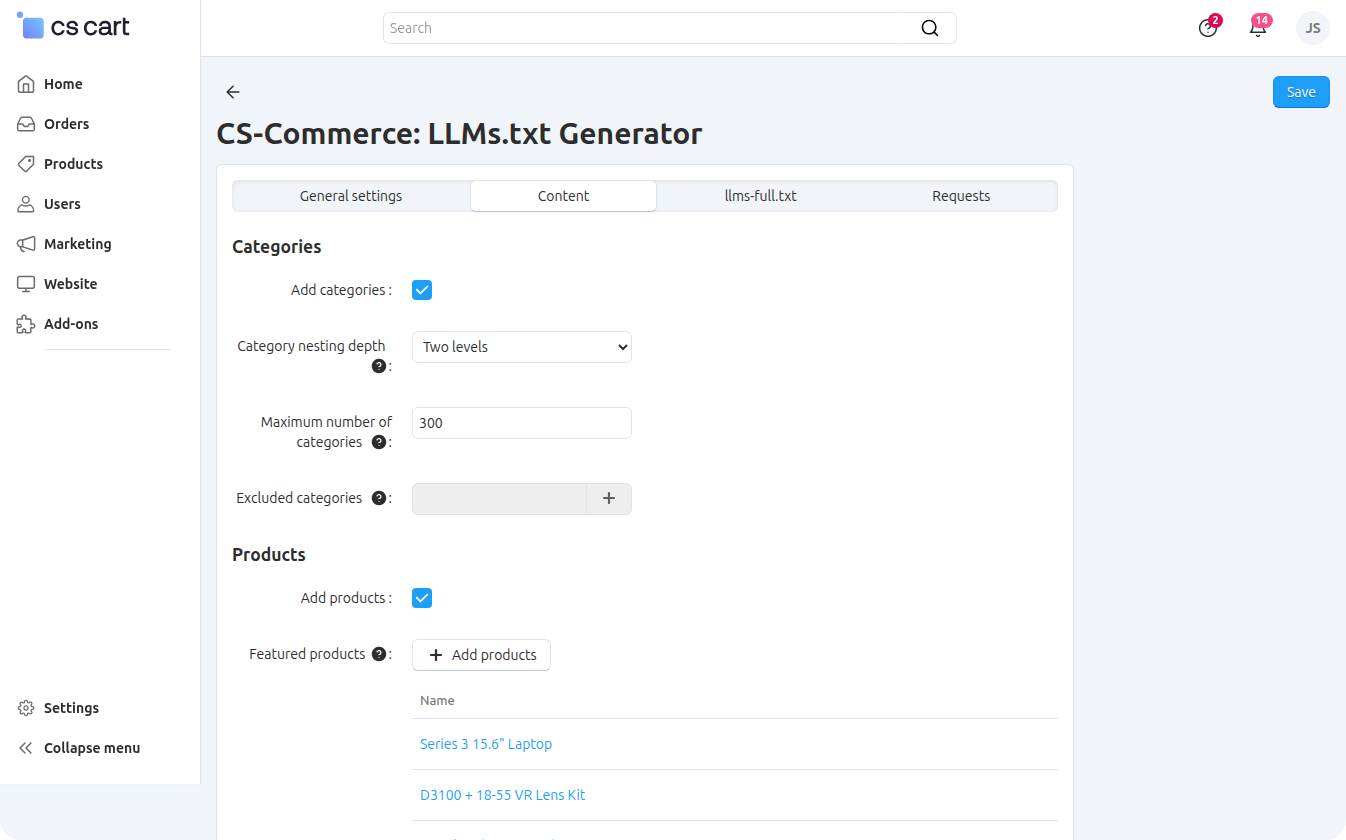
The Content tab defines what gets into both files. It is split into three groups: Categories, Products and Pages.
Categories
- Add categories — output the section with categories. Enabled by default.
- Category nesting depth — Top level only, Two levels (default), Three levels or All levels. Top levels are enough for an assistant to understand the catalog structure.
- Maximum number of categories — 300 by default, 5000 at most. If there are more categories, the deepest levels are left out first, and only then is the list cut.
- Excluded categories — the selected categories, their subcategories and the products in them are left out of the files. A product is excluded even if it is linked to an excluded category only as a secondary one.
Only active categories available to guests get into the files.
Products
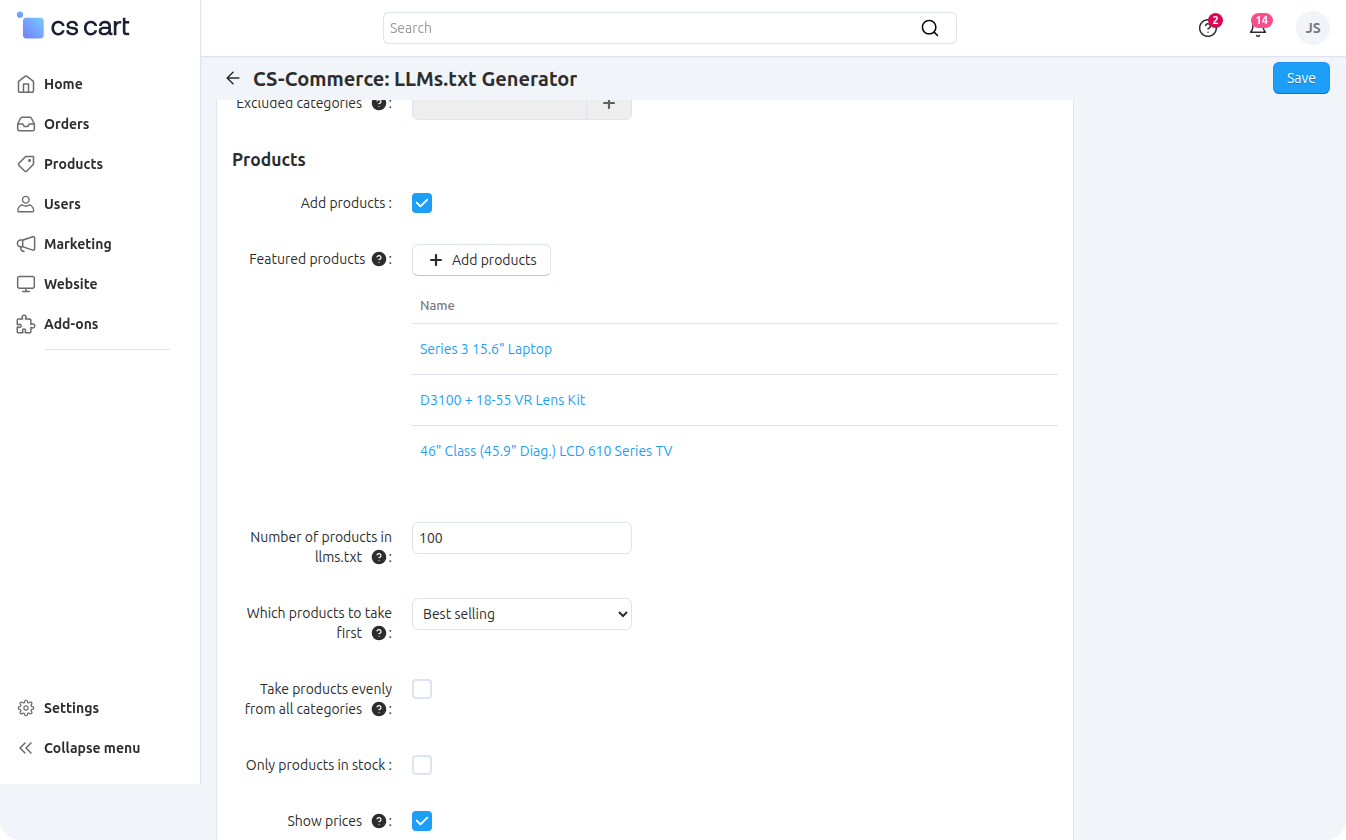
- Add products — output the product sections. Enabled by default; when disabled, featured products are not output either.
- Featured products — products you want AI assistants to know about first: bestsellers, flagship and high-margin items. They open the file in a separate section.
- Number of products in llms.txt — 100 by default, 5000 at most.
- Which products to take first — Most popular (default), Newest, By name and Best selling. The last option is available when the CS-Cart Bestsellers & On-Sale Products add-on is active.
- Take products evenly from all categories — every top-level category gets an equal share of the list, so one popular category does not take all the places. Disabled by default.
- Only products in stock — skip products that are out of stock. Products without inventory tracking count as in stock.
- Show prices — prices are shown as a guest sees them, in the primary currency of the store. Enabled by default.
How products are selected
Featured products are always output, and first. They are not counted in the product limit, and the Only products in stock and Excluded categories filters do not apply to them — a product picked by hand will be in the file. Featured products are not repeated in the general list. The first 100 selected products are taken into account.
The other products are selected by the Which products to take first setting until the limit is reached. With Take products evenly from all categories enabled, the limit is split equally between the top-level categories, and their products go in turns: the first one from each category, then the second, and so on. When there are not enough products by the main criterion — for example, only part of the catalog has sales, or a category has few products — the list is filled up with the most popular ones.
We recommend no more than 100 products in llms.txt. It is a short index that an assistant reads in full: the longer the file, the higher the chance that it will not fit and that the main products get lost among minor ones. For the whole catalog there are the sitemap and product feeds.Pages
- Add information pages — active store pages (delivery, payment, contacts and so on) in the order of their positions. Enabled by default.
- Add blog posts — works when the Blog add-on is active; posts go from newest to oldest. Disabled by default.
llms-full.txt is an extended file with full descriptions, so that an assistant can answer questions about products without opening every page. Categories, exclusions, featured products and the selection order come from the Content tab; this tab holds only what concerns the detailed file.
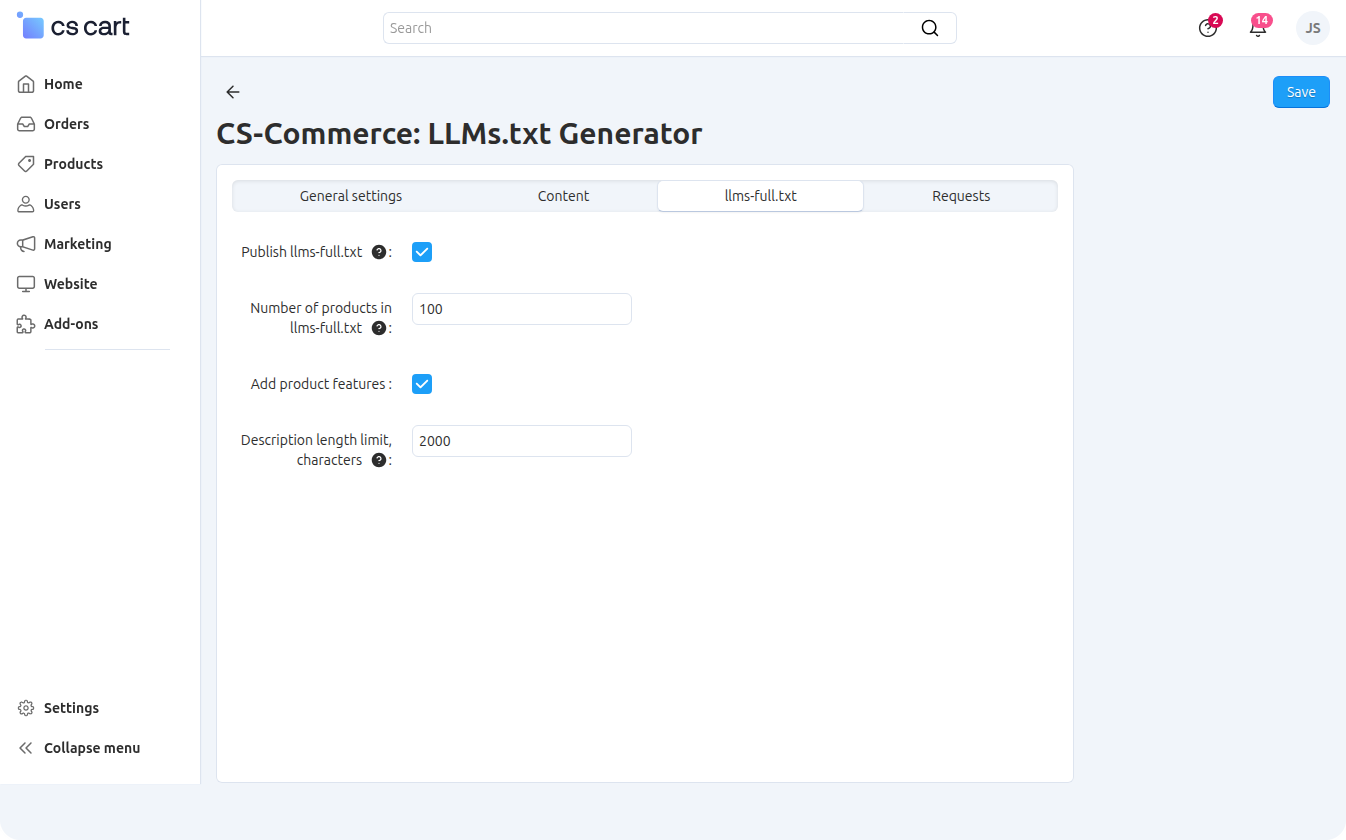
- Publish llms-full.txt — when disabled, the
/llms-full.txtaddress returns 404 and the link to it disappears fromllms.txt. Enabled by default. - Number of products in llms-full.txt — 100 by default, 1000 at most. Featured products are not counted in this number.
- Add product features — output features as lines like
- Name: value. Enabled by default. - Description length limit, characters — longer descriptions are shortened at a word boundary. 2000 by default; set 0 to keep the descriptions in full.
We recommend no more than 100 products. Every product is described here in detail, with its description and features, so the file grows many times faster than llms.txt, and an assistant may not be able to read a file that is too large.The Requests tab shows who requested the files over the last 30 days: how many times llms.txt was served, how many times llms-full.txt, and the date of the last request. Rows are sorted by the total number of requests.
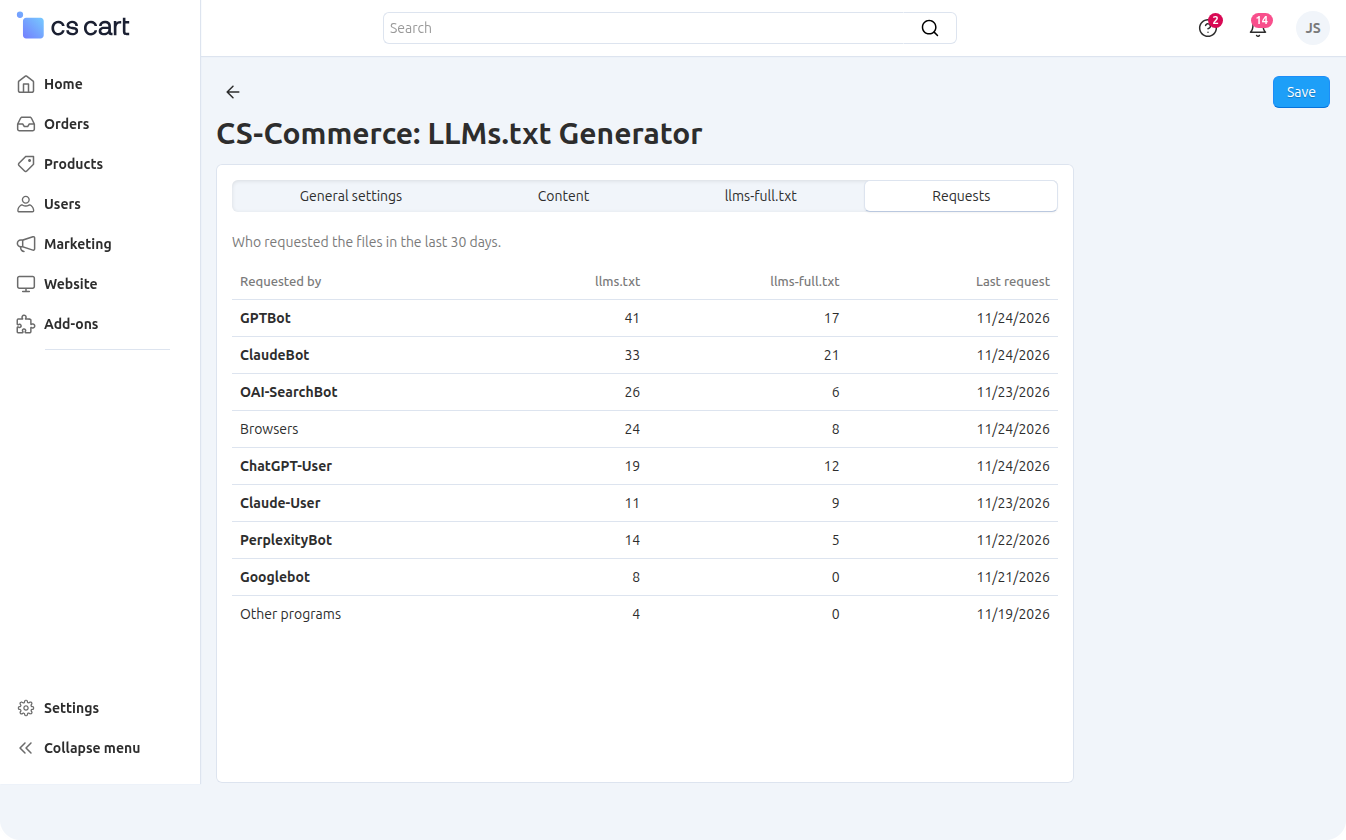
The reader is identified by the User-Agent header:
- known bots of AI services and search engines are listed by name in bold: GPTBot, OAI-SearchBot, ChatGPT-User, ClaudeBot, Claude-User, Claude-SearchBot, PerplexityBot, Perplexity-User, Google-Extended, Googlebot, Bingbot, YandexBot, Applebot, Amazonbot, Meta-ExternalAgent, CCBot and others;
- Browsers — regular browsers, including you when you open a file from the settings;
- Other programs — everything else: scripts, checking services, unknown bots;
- Not identified — requests without a User-Agent.
Every served file is counted, not unique visitors. Requests that never reached the add-on — for example, when the web server returned its own llms.txt from the store root — are not counted. If nobody has requested the files yet, the tab says so.
Requests show that a file was read, not how the service used what it read. Bots can present someone else's User-Agent, so the names in the table are what the bot called itself.
Refreshing on request
By default the add-on builds a file when it is requested. The Refresh the files setting sets how long a file stays current: until then the ready file is served; once it expires, the very next request rebuilds it from the current catalog. If there is no file yet, it is built on the first request.
While a rebuild is running, other requests get the previous version of the file, and only one process builds it. The new version replaces the old one only when it is complete, so nobody ever gets a half-built file.
Saving the add-on settings queues all files for a rebuild. Clearing the store cache does not reset the files: they are kept in var/files/csc_llms_txt/, not in the cache.
Rebuild only on schedule
On a large catalog a build takes noticeable time, and the visitor who triggers it waits for the response. Enable Rebuild only on schedule: then a request always gets the ready version, and the files are refreshed by a cron task. The Refresh the files setting is not used in this mode and is hidden.
The cron command is shown in the Scheduled rebuild block on the General settings tab, for example:
wget -q -O /dev/null "https://your-store/index.php?dispatch=csc_llms_txt.generate&key=KEY"
Add it to the server scheduler, for example once a day. Each storefront has its own command. When run, the add-on prints the list of built files with their sizes.
The command appears only when the access key for cron is set in Settings → Security settings. The key is part of the command address: without it, or with a wrong key, the run is rejected. If you change the key, update the command in the scheduler too.The task always rebuilds the files in the default storefront language. Files in other languages are rebuilt only if they have been requested at least once. With the schedule enabled, after the settings are saved the files stay as they were until the next run of the task.
CS-Cart 4.20.1 and newer has a built-in editor at Website → SEO → llms.txt, where the file text is written by hand. The add-on works next to it like this:
- while Publish the files is enabled in the add-on, the
/llms.txtaddress serves the add-on's file, and the text from the built-in editor is not used. A note on the General settings tab reminds you of this; - if you disable Publish the files or turn the add-on off, the
/llms.txtaddress goes back to the built-in editor and serves the text entered there again. The add-on neither changes nor deletes the editor's text.
If the editor already had useful text — delivery terms, contacts, a store description — move it to the Short store description and Additional information fields: the add-on puts it at the top of the file, above the catalog.
The catalog export for ChatGPT that appeared in CS-Cart 4.22.1 is a separate feature: a product feed sent to OpenAI on application. The add-on does not replace it and does not interfere with it — they can be used together.
Will the store get more traffic from AI services?
That cannot be promised. llms.txt is an open proposal, not a mandatory standard: Google states that the file does not affect search, and whether AI services read it is up to them. The add-on makes sure the store has a tidy and up-to-date file and shows on the Requests tab who actually requests it.
/llms.txt shows something other than what the add-on built
Most likely the root directory of the store holds its own llms.txt file, and the web server returns it without reaching CS-Cart. In that case the General settings tab shows a warning. Delete the file. If there is no such file, check that Publish the files is enabled: when it is disabled, CS-Cart 4.20.1 and newer serves the text of the built-in editor.
/llms.txt returns 404
Check that the add-on is active and Publish the files is enabled. If everything is enabled and the store runs on nginx, nginx probably does not pass requests for missing .txt files to CS-Cart — see the warning in How the files work. To check, open index.php?dispatch=csc_llms_txt.view&file=llms: if the file is there, the issue is in the web server configuration.
I changed a product, but the file shows old data
A file is refreshed when the Refresh the files interval expires or, with Rebuild only on schedule enabled, when the cron task runs. To rebuild the files right away, save the add-on settings: the files are queued for a rebuild and get built on the next request or scheduled run. Clearing the store cache does not affect the files.
Why is my product not in the file?
Possible reasons: the product did not fit into the limit with the chosen selection method; it is in an excluded category (including as a secondary one); Only products in stock is enabled; the product is disabled or hidden from guests. To make sure a product is in the file, add it to Featured products.
Why do the prices differ from what I see in my account?
The files are built as a guest, so the prices are what an anonymous visitor sees, with the discounts that apply to guests, in the primary currency of the store. Customer group prices do not get into the files.
How do I get a file in another language?
Add the language code at the start of the path: /de/llms.txt, /de/llms-full.txt, or the ?sl=de parameter. The file in each language is built separately, on the first request to it.
How many products should go into the files?
We recommend up to 100 in each file. An AI assistant reads llms.txt in full, and a long file may not fit; it is better to pick the key products by hand. For the whole catalog, search engines and services have the sitemap and product feeds.
In order to have access to add-on upgrades, you must have an active upgrade subscription. If the subscription period has expired, you will only have access to upgrades released before the expiration date of your subscription. You can renew your upgrades subscription in the "License Management" section on our website.
The add-on supports instant upgrades via the CS-Cart Upgrade Center. The built-in CS-Cart Notification Center (bell) will notify you about new versions release of the add-on. Upgrades via Upgrades Center will allow you to switch to a newer version without losing add-on data and settings.
Before start an upgrade process, it is highly recommended to make a full backup of the site (database and files) of your store using the server or hosting methods.
Upgrade through the Upgrade Center
- In the top menu, go to Administration → Upgrade Center;
- In the gear menu, click "Refresh available upgrades"
- Find and add-on on list of available upgrades and click the Download button and than Install button;
- Follow all the instructions that will be shown during the upgrade process;
- It is recommended to clear the CS-Cart templates cache after the upgrades are installed by deleting the var/cache folder on your server or adding the ctpl parameter to the address bar (example: https://domain.com/admin.php?ctpl).
Addon Reinstallation by uninstall old and install new:
Reinstalling an add-on means deleting the add-on's settings and data. Reinstallation will allow you to get a clean installation of the latest addon version. To reinstall the add-on with saving the add-on settings and data, please contact us via our Support Center to provide this service.
To completely reinstall an add-on without saving data, follow these steps:
- Go to Add-ons → Manage add-ons and find the old installed add-on.
- Click the delete button in the gear menu of the add-on.
- Download the latest version of the add-on on our website in the "License Management" section.
- Go to Add-ons → Manage add-ons and in the gear menu select Manual Installation. Select the previously downloaded file and complete the installation of the add-on.
The technical support of the add-on is already included in its price. Before contacting the support center, please make sure you are using the latest released version of the add-on. Old versions of the add-on are not supported by technical support.
To use our technical support, follow these steps:
- On our support center site https://helpdesk.cs-commerce.com/, log in with your account;
- Click on the "Create ticket" button;
- Fill in all the required fields and create ticket (you will receive a confirmation email);
- Expect a response from a specialist (a notification will be sent to your e-mail about the response) in accordance with the regulations of the technical support service.
If you have not received an answer within the time frame specified in the regulations, write us a message to the e-mail info@cs-commerce.com with the subject of the ticket and we will try to resolve your issue as soon as possible.
Technical support via chat on the site, direct phone calls or e-mail letters is not provided. All help discuss goes through the support center. Carefully study the documentation for the add-on and the terms of technical support before creating a ticket. We recommend that you familiarize with the general restrictions:
- Fragments of code or some files of an add-on may have a private (encoded) part. The coded part does not create problems on add-on customizations;
- The add-on will work only on those domains that are specified in the user's license. If you try to use the solution the domains of which are not included in the license, the add-on will be automatically disabled;
- Installing on local machines is not allowed by the licensing system. For the add-on to work on an additional domain (alias), specify this alias on the license management page. Up to three aliases are allowed per domain for testing and development purposes. You can change the main license domain yourself on the license management page.
To have possibility to add or change license domains and aliases, the upgrade subscription must be active. To change the license domain of an expired upgrades subscription, you must first renew your subscription.
Version 1.0.0 of November 24, 2026
- The first release of the add-on: llms.txt and llms-full.txt built automatically from the store catalog, key products chosen by hand, by sales or evenly across categories, category exclusion, scheduled refresh, separate files for storefront languages, statistics of AI crawler requests.